Keel · Guides · Getting started
Create your first routine
How do I add what I take?
+ › New routine: give Keel a name and a time — everything else is optional — and its doses appear on Today and the calendar.
AvailabilityFree
+ › New routine. The form is titled New Routine, with Cancel and Save; new routines start timed at 9:00 AM.
- A name and a time — "A name and a time is all that’s required."
Steps
- Tap +, then New routine.

The create menu behind the + button: New routine is the primary card; Manage routines lists what you already track. - New routine
- Manage routines
- Pro-locked rows
Where this screen comes from
- File
G5-F1-create-menu.png(1320×1060);G5-F1-create-menu.webpis a lossy encode of it- Derivative SHA-256
25e5548a9eff9281e06ab55974da3d243d936e5a2b146f168f1d620d07331b0b- Source
promax/current/EV-039_create-menu-s1-standard-light.pngin packageKeel-V1-4cbadaa-signoff- Source SHA-256
509a29f20fbdfe0db752db0dc837966e1cb048ac5b9ee8ab76fc4090f67e2116- Package seal
65268f2b78728fbf82ba56a02668a2400276c526627da043627276887510b5b3- Captured from
- Keel 1.0.0 (1), implementation
4cbadaa1c63a0678b61e703583fadc9af226267d(reused-unchanged) - Operation
- crop x0 y1320 w1320 h1060 (source pixels, origin top-left)
The numbered markers are drawn by the page, not into the image. Full provenance.
- Optional: tap a Quick start chip — Daily supplement, Daily peptide, Weekly injection, 2× week injection, Daily medication. A chip sets category, administration and cadence only; never a dose or a substance.
- Under What you take, type the Name; pick a Category (Peptide, TRT / Hormone, Medication / Ancillary, Supplement, Other, Custom) and an Administration (Injectable, Oral, Topical, Nasal, Liquid, Custom).

A new routine: the Quick start chips set the shape; you fill in the name, category, administration and how often. - Quick start chips
- Name
- Category / Administration
- Repeats
Where this screen comes from
- File
G5-F2-new-routine-form.png(1320×1580);G5-F2-new-routine-form.webpis a lossy encode of it- Derivative SHA-256
a246a75b539361c5b92cbc12a030f56c55959eabaefc7c1bbd4ff0d065e9eae0- Source
G5-F2.pngin packageKeel-V1-4cbadaa-guide-figures-B-20260910-165828-62385- Source SHA-256
95f5f341e931e9847f929e451529f547ada3633f30aa7673b5dbc98f50ad6dd2- Package seal
df48d7c70fb742b308677bf5d03a694f9122cc628b75451b9814645da1b37b52- Captured from
- Keel 1.0.0 (1), implementation
4cbadaa1c63a0678b61e703583fadc9af226267d(reused-unchanged) - Operation
- crop x0 y200 w1320 h1580 (source pixels, origin top-left)
The numbered markers are drawn by the page, not into the image. Full provenance.
- Under How often, set Repeats: Daily, Every other day, Every 3 days, Weekly on days, Times per week, or Every N days. Weekly shows a weekday row; the last two show a stepper.
- Under At what time, keep Time 1 or change it, Add another time, or turn on Any time of day.
- Under Duration, set Starts; turn on Ends on a date if it ends. Optional: type the Dose as you record it — an amount and a unit; the footer says it is kept "without interpretation". Under Reminders, keep Remind me on if you want notifications.
- Tap Save. More options (planned changes, late-dose behaviour, injection-site rotation, inventory) can wait.
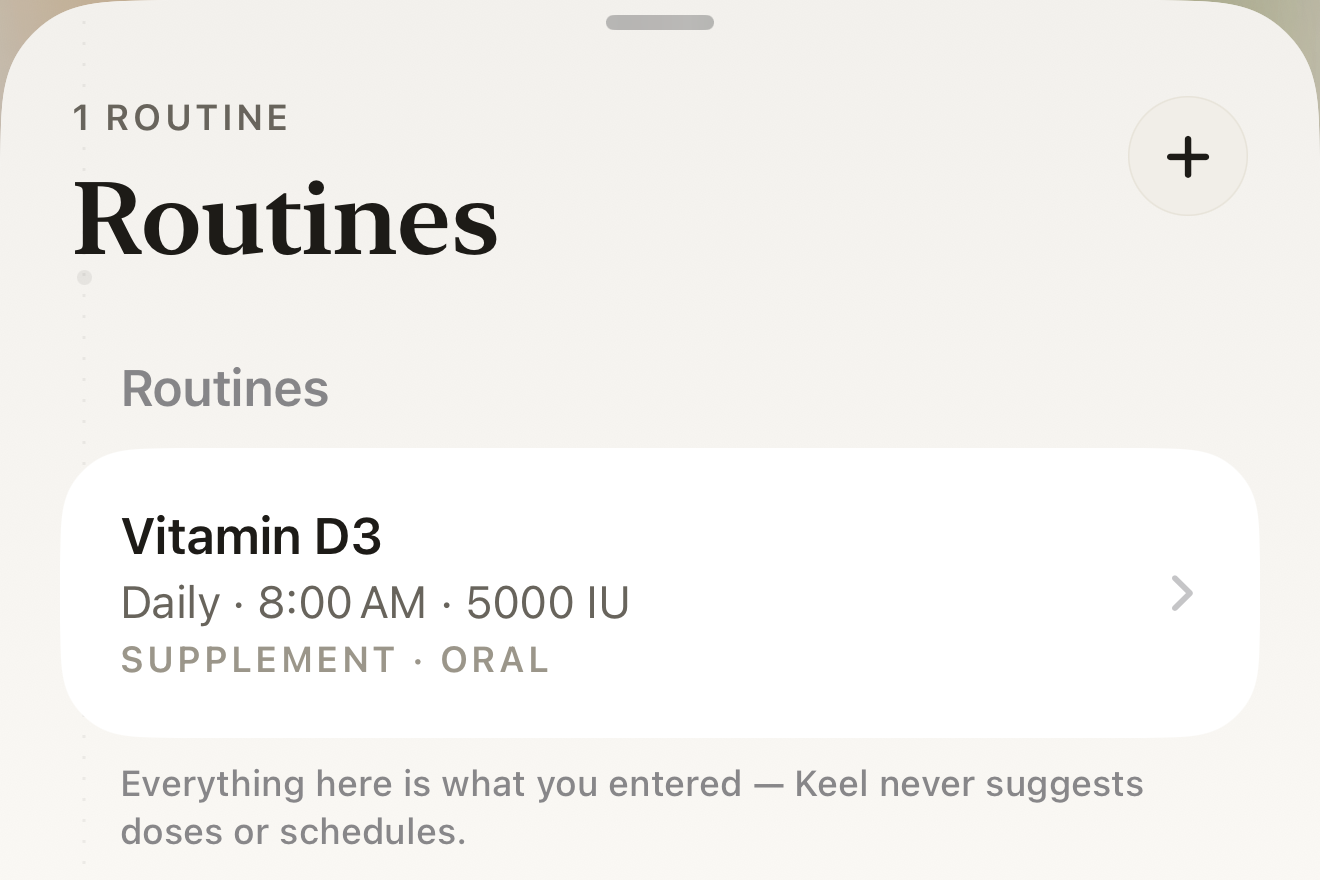
After Save the routine is listed here; tap it for details and Edit, or swipe for Pause and Delete. - Routines title
- the routine row
- footer "Everything here is what you entered…"
Where this screen comes from
- File
B2-F3-routines-sheet.png(1320×880);B2-F3-routines-sheet.webpis a lossy encode of it- Derivative SHA-256
3fa1bad840eae1423d664b27d198c07e88364a78c126f095016c7bf226f7fb87- Source
B2-F3.pngin packageKeel-WT-7e41269-guide-figures-B1-20260924-090933-67253- Source SHA-256
43fbe053c48000c626ecb21246b69abec2d531290c85152863ac7c9d1f4746c4- Package seal
fd002ec92b03ee746be00143a4397ff542b7ef280c610dfb07bdf49a1ff4efc5- Captured from
- Keel 1.0.0 (1), implementation
working tree 7e41269 (NOT a candidate; head 7e4126919da3a44a9ad2f2efaf3ad2467c1fbff7, build-input tree 213aa887926d08f17538a5789db46f99fbc9a8120019b2cd3c59876621f68970, build build-20260917-181010-73820) - Operation
- crop x0 y186 w1320 h880 (source pixels, origin top-left)
The numbered markers are drawn by the page, not into the image.


What changes
The routine’s doses appear on Today and the calendar from its start date, and the routine is listed under + › Manage routines on the Routines sheet, where a swipe offers Pause and Delete and a tap opens its detail with an Edit button.
Where: Today, the Calendar, and + › Manage routines
If it looks different
- Can’t save yet?
- "Give the routine a name." — the name is empty. "Add at least one time of day, or switch to any time of day." — no time. "The end date must be after the start date."
- The form opens fully, titled Edit Routine?
- You are editing an existing routine; saving changes only pending doses that no longer fit the plan; logged, skipped, snoozed, moved, late and missed doses are never rewritten.
- Looking for If I log late?
- It is under More options — see the fixed-or-rolling guide.
The form records what you take and when, as you enter it; Quick start sets only a shape, and the dose is kept without interpretation.